

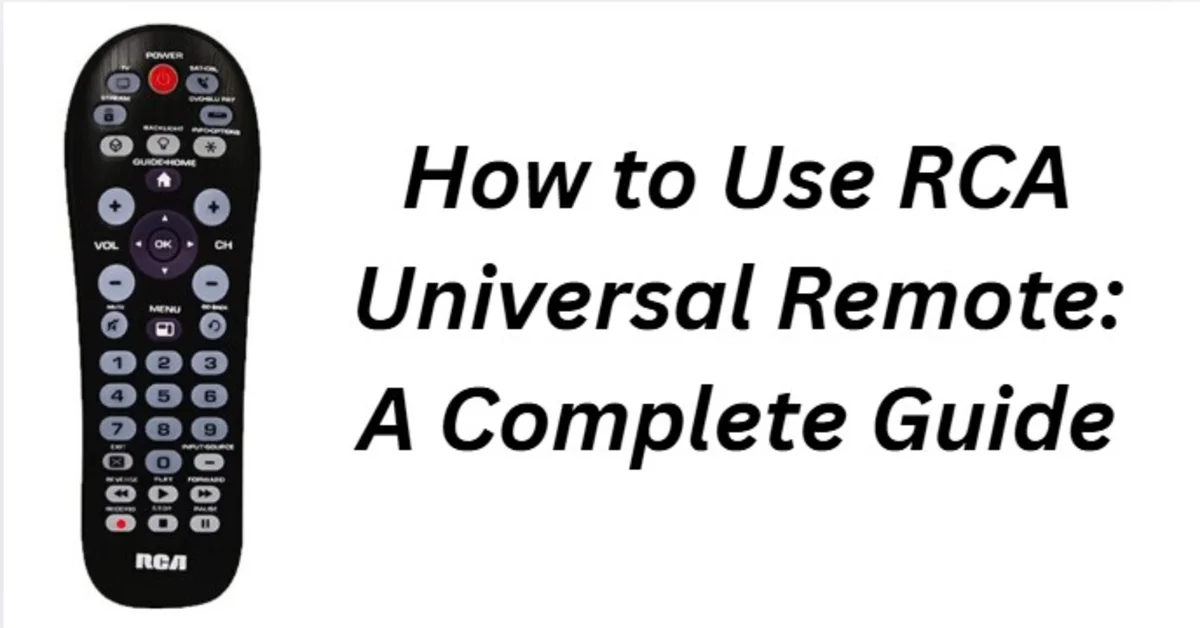
Using a universal remote can simplify your home entertainment system by allowing you to control multiple devices with a single device. The RCA universal remote is one of the most popular options due to its affordability, ease of use, and compatibility with a wide range of TVs, DVD players, and audio systems. In this guide, you will learn step-by-step how to set up, program, and use your RCA universal remote effectively.
Why Choose an RCA Universal Remote?
The RCA universal remote is designed to replace multiple remotes, making it easier to control your electronics without juggling several devices. Some benefits include:
- Compatibility with hundreds of brands and devices
- Simple setup with code entries or auto-search features
- Ergonomic design for comfortable handling
- Affordable price compared to other universal remotes
With these features, the RCA remote is ideal for anyone who wants a hassle-free experience.
Step 1: Prepare Your Remote
Before you start programming your RCA universal remote, make sure:
- You have two AAA batteries installed correctly.
- Your device (TV, DVD player, or audio system) is turned on.
- You have your device brand and model handy, in case you need the code.
Step 2: Find the Device Code
RCA universal remotes can be programmed in two ways: manual code entry or auto-search.
Manual Code Entry
- Please refer to the RCA remote manual or visit RCA’s website to find your device code.
- Press and hold the Setup button until the indicator light stays on.
- Press the device button (TV, DVD, etc.) you want to program.
- Enter the three- or four-digit code using the number buttons.
- The indicator light should turn off, signaling a successful entry.
- Test the remote to see if it controls the device.
Auto-Search Method
- Turn on your device.
- Press and hold the Setup button until the light stays on.
- Press the device button you want to program.
- Press the power button repeatedly until your device turns off.
- Once it turns off, press Enter or Setup to save the code.
Step 3: Control Your Device
Once programmed, your RCA universal remote can control basic functions, such as
- Power On/Off
- Volume Up/Down
- Channel Up/Down
- Menu Navigation
- Play, Pause, Stop, or Skip (for DVD or streaming devices)
Ensure you are pointing the remote directly at the device for the best signal reception.
Step 4: Program Additional Devices
One RCA universal remote can control multiple devices:
- Repeat the code entry or auto-search process for each device.
- Please ensure you select the correct device button before programming.
- Test each device after programming to ensure proper functionality.
Step 5: Troubleshooting Common Issues
people can also read this”AnonIBs Anonymous Imageboard Explained“
Sometimes, the RCA universal remote may not work properly. Here are common issues and fixes:
- Remote not working: Replace batteries or ensure they are inserted correctly.
- Device not responding: Re-enter the correct code or try the auto-search method.
- Limited functionality: Some older devices may not be fully compatible.
Tips for Using Your RCA Universal Remote Efficiently
- Keep a list of device codes for easy reprogramming.
- Clean the remote sensor regularly to maintain proper signal transmission.
- Avoid placing objects between the remote and the device.
- Use a central location for easy control of all devices.
Conclusion
The RCA universal remote is a simple, effective way to manage multiple home entertainment devices. By following this step-by-step guide, you can easily program your remote, control multiple devices, and troubleshoot issues. Whether you are switching from multiple remotes or setting up a new system, the RCA universal remote makes managing your devices easier than ever.
FAQs
How do I program my RCA universal remote?
You can program it using manual code entry or the auto-search method.
Can one RCA remote control multiple devices?
Yes, it can control TVs, DVD players, and audio systems with different buttons.
What if my device code doesn’t work?
Please consider using the auto-search function or checking the RCA code list online.
Do I need new batteries for the remote to work?
Yes, replace batteries regularly to ensure optimal performance.
Is the RCA universal remote compatible with all brands?
It supports hundreds of brands, but some older devices may have limited functionality.
For more updates visit: MAGAZINE ZILLA

2 Comments
Pingback: RCA Universal Remote Codes for Sony A Quick and Easy Guide
Pingback: Why I’m Building CapabiliSense -